Ever wondered what it would be like if your everyday items came to life? Viral AI talking object videos turn that imagination into reality.
With animated faces and expressive voices, familiar items like your phone, a tomato, or even a slice of pizza can tell stories or share life advice you won’t want to miss. Meanwhile, these fun and simple videos about everyday objects explaining how they work are getting millions of views.
Viral AI Talking Object Video
Curious to try it yourself? Keep reading to learn what AI talking object videos are and follow step-by-step instructions to create your own.
Can't Miss: 5 AI Photo Animators to Animate Old Photos Online>>
Directly Generate AI Talking Object Videos Online>>
Part 1. What is an AI Talking Object Video?
Talking object videos bring everyday items—like bananas, phones, coffee cups, or slices of pizza—to life with animated faces and voices. These characters tell engaging stories, share life advice, or deliver comedic monologues. Popular on YouTube, Reels, and TikTok, this type of content stands out for its strong personality, using human-like voiceovers and lip-synced movements to boost engagement.
Example of Viral AI Talking Object Video
Can’t wait to create your own engaging video for your audience? Let’s walk through how to do it!
Part 2. How to Create Viral AI Talking Object Video
The process to recreate the trending AI talking object video is much easier than you think. With the help of ChatGPT and an AI talking object video generator, you can turn any object into a character that makes people stop with weird, unexpected content. Here we go!
Step 1: Create Dialogue and Image Prompt with ChatGPT
Ready to jump right in? Not so fast! You’ll need the right prompts to guide cartoon object image generation and create expressive, emotional dialogue. Feeling overwhelmed about writing them yourself? Don’t worry—there’s a ChatGPT plugin to help.
First, open ChatGPT and click Explore GPTs. In the search box, type Object Talk, then hit Start Chat to activate it. This tool can generate everything you need to turn any object into a talking character with an expressive face and engaging voice.
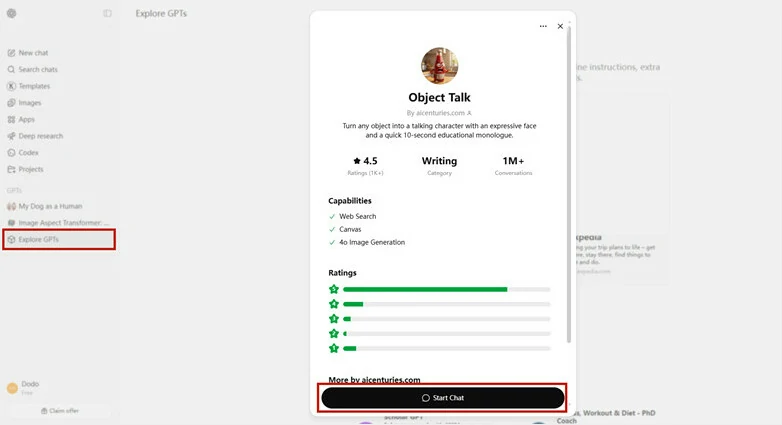
Open FlexClip's Object Talk Feature to Generate All Necessary Prompts
Simply enter the object you want your video to feature—for example, type “banana.” The GPT will then generate five text-to-image prompts along with five video scripts to suit different styles. Just copy the ones you like and you’re ready to move on!
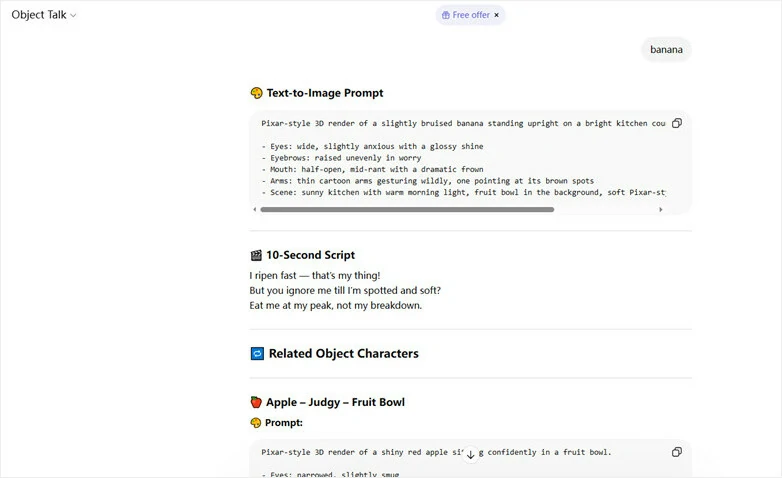
Generate a Prompt of Banana Object
Step 2: Turn Text Prompt into Object Image
Copy the prompt generated by ChatGPT and head over to FlexClip’s AI text-to-image generator. Paste the prompt into the input box, then choose your preferred model, style, and number of images to generate. Since you’re creating content for vertical platforms, a 9:16 aspect ratio is recommended.
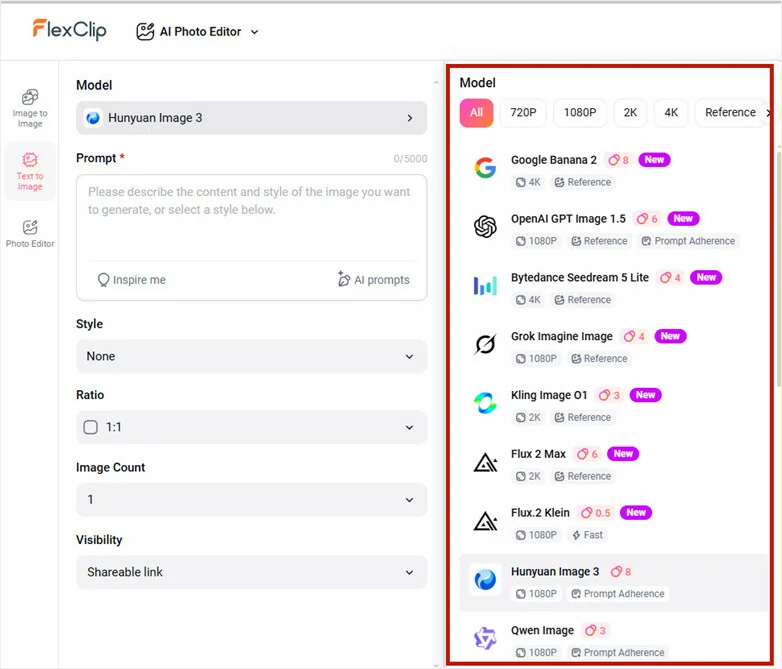
Turn Text Prompt into Object Image
In this example, we use Google Nano Banana Pro, known for its strong prompt understanding and high-quality results, and set the image ratio to 9:16. Here’s the final result generated in FlexClip.
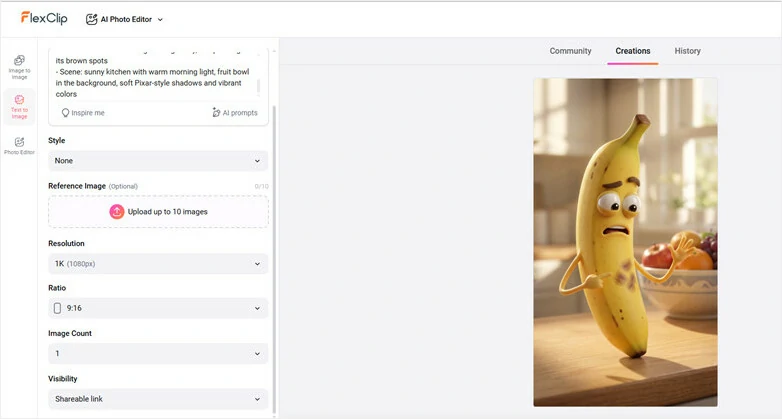
Banana Object Image Generated by Nano Banana Model
Feel free to switch between different models to experiment and have fun—FlexClip integrates many of the latest image generation models in one place. Try exploring your object with different styles and see what you can create!
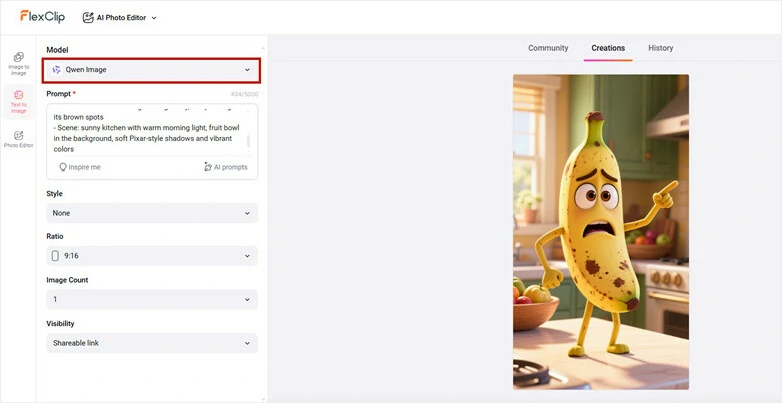
Banana Object Image Generated by Qwen Image Model
Step 3: Turn Image into Talking Short Video
Now it’s time to turn your object image into an engaging talking video. Simply click the Image to Video button below the generated image, or open FlexClip’s AI video generator to get started.
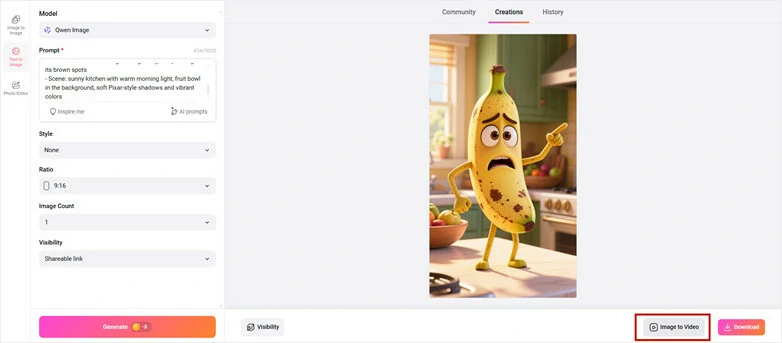
Open FlexClip's Image to Video Generator Page
Next, copy and paste the script generated by ChatGPT into the prompt box. Then open the drop-down menu and switch to the Audio tab. Make sure to choose a model that supports audio generation along with animation—this allows you to create realistic voiceovers with lip-synced movements
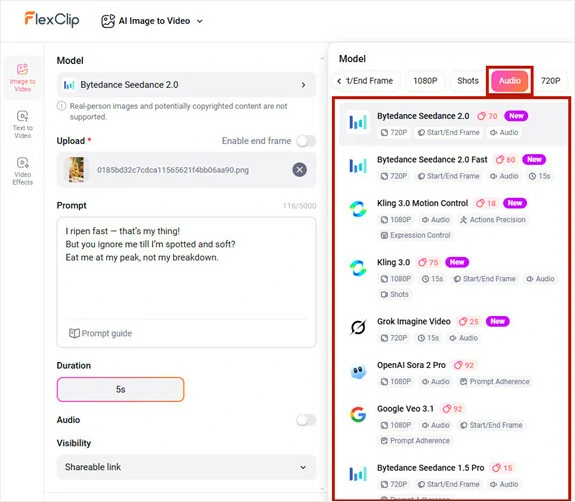
Enter Prompt and Choose Model that Supports Audio Generation
Here we use Kling 2.6 to generate the talking object video. Once everything is set, click Generate and let the AI work its magic!
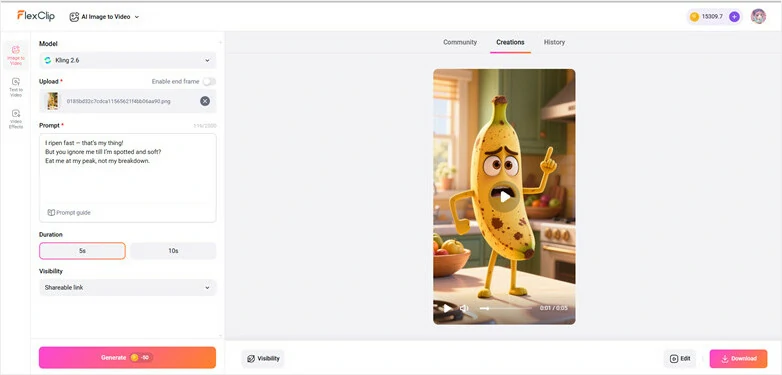
Object Video Generated by Kling Model
Step 4: Edit Your AI Talking Object Video to Perfection
Take your AI-generated talking object video into FlexClip’s built-in editor and enhance it with animated text, sound effects, background music, or even your channel logo to make it truly your own.
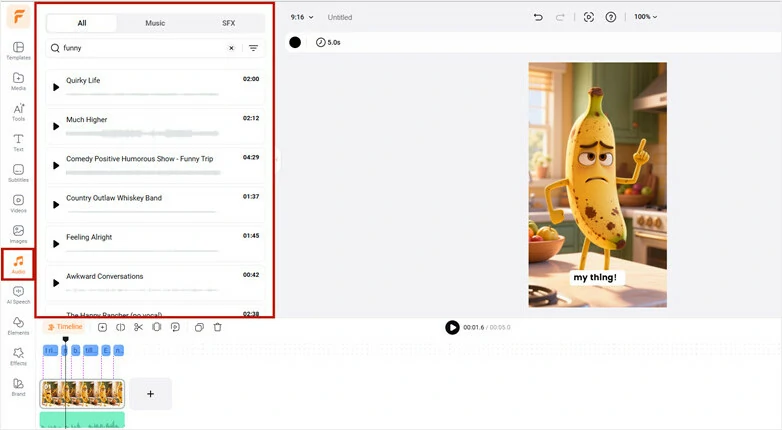
Edit Your Video with FlexClip's Built-in Video Editor
FlexClip’s timeline-based editor is intuitive and easy to use—simply drag and drop elements or click to apply edits, with real-time preview for every change. You’ll also find a wide range of resources, filters, and AI tools conveniently organized in the left sidebar.
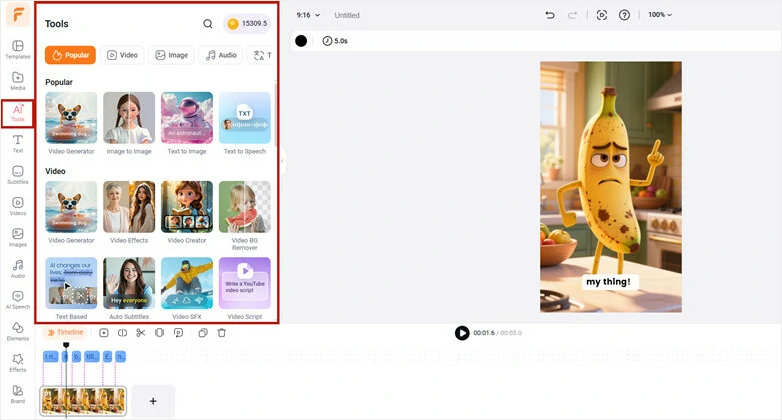
Extensive Media Resource and Features in FlexClip
Step 5: Instant Download and Share
FlexClip offers flexible options for downloading and sharing your videos. You can post your AI talking object video directly to YouTube, TikTok, and other social media platforms, share it via a clickable link, or download it to your device. Choose the method that works best for you and enjoy sharing your creation!

Download and Share Your AI Talking Object Video
Why Choose FlexClip’s AI Talking Object Maker?
The Bottom Line
Above are all about AI talking object video and the process to create one with the help of ChatGPT and FlexClip’s AI-powered tools. Now embark your creation journey and explore the next object talking video to go viral!




FlexClip AI Video Maker
Reach professional-quality videos faster with easy editing tools, templates, and smart AI.
Start Now for Free
Hot & Trending
-

Best Ways to Find Music in YouTube Videos
-

Instagram Story Video Quality Bad After Upload? Fix It!
-

How to Repost Video on TikTok & How to Remove TikTok Repost
-

Improve Video Quality Online: 3 AI Video Quality Enhancers You Can't Miss
-

4K Convert to HD 1080p without Watermark: Best 4k Video Converters
-

Best 8 Free Video Editors - No Download Required
-

Top 13 Birthday Video Makers with Music and Effects Free
-

How to Search Filters on TikTok & Use a Filter You See - TikTok Filter Guide